
Rust ESP Filters: Build a View for the Task
How ore colours, animal switches, base objects and dropped item filters work together without filling the display.
Choose a task before enabling groups
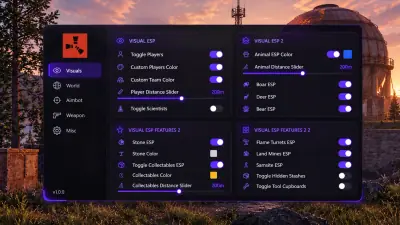
Rust ESP covers more than players. A farming run, a monument visit and a search for dropped equipment need different information. Decide which objects you need to see, then enable the relevant groups. The controls described here are the documented menu options, rather than a saved preset you can import. The overlay still needs the full setup requirements.
Give materials distinct colours
Ore ESP separates sulfur, metal and stone by colour. The group has a master switch and a distance slider. Collectables form another group for wood, berries, hemp and food. Assign the resource you are seeking a colour that is easy for you to distinguish from the others. Use the group’s distance setting to reduce distant markers instead of making every object equally prominent.
Keep NPCs, teammates and wildlife distinguishable
Players have a main colour and a team colour. Scientists have independent colour and distance controls, so they need not share the player appearance. Animal ESP adds individual switches for boar, deer, bear, polar bear, wolf, horse and chicken. Selecting species is more precise than displaying every animal when you only need food or want to watch for predators.
Separate equipment from base objects
Dropped items have a weapons only filter, plus colour and distance controls. This filter applies to that group; it does not replace player equipment fields. Player ESP can show a held item or held weapon. Stashes and tool cupboards have independent toggles, while traps form a group covering six defensive object types. Seeing a trap marker does not prove that an approach is safe.
Use distance and style for readability
The documented display styles are box and skeleton. Names, health and held equipment are optional fields. Font, icon, box and skeleton sizing are available in configuration, along with separate overlay update and render rates. Change one display choice at a time so you can see what made the view harder to read. No setting here establishes unrestricted visibility across the whole map. For targeting controls, read the aim and recoil guide.